How to integrate Cetra with Cliniko.
The integration between Cetra Health and Cliniko allows healthcare professionals to automatically record handout activity directly in the Cliniko patient record whenever a resource is sent through Cetra Health. The result is a streamlined workflow that improves documentation accuracy, saves valuable time for practitioners and administrators, and provides a clear audit trail of patient education materials shared during care.
Step 1: Locate your Cliniko API key
To connect Cetra Health with Cliniko, you first need to generate an API key from your Cliniko account. This key allows Cetra Health to securely send information to the patient record in Cliniko.
Log in to your Cliniko account.
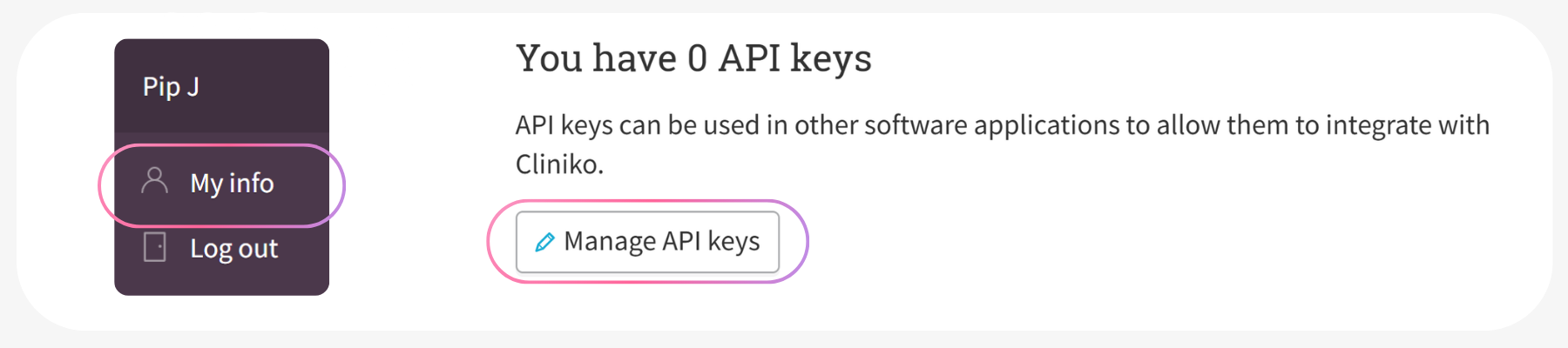
Click on My Info (this can be found in the bottom left hand corner of a screen).
Scroll down the page until you find the API Keys section.
Important note: You must have Practitioner or Administrator permissions in Cliniko to generate an API key.
If you do not see the Manage API Keys button, it means your account does not currently have the required permissions. In this case, please contact your Cliniko account administrator and ask them to update your user role so you can create an API key.
Once you have access to the API Keys section, you will be able to generate a key that can be used to connect Cetra Health with your Cliniko account.
Step 2: Generate and copy your API key
Once you have access to the API Keys section, you can generate a new key for the Cetra Health integration.
Click the ‘Manage API Keys’ button.
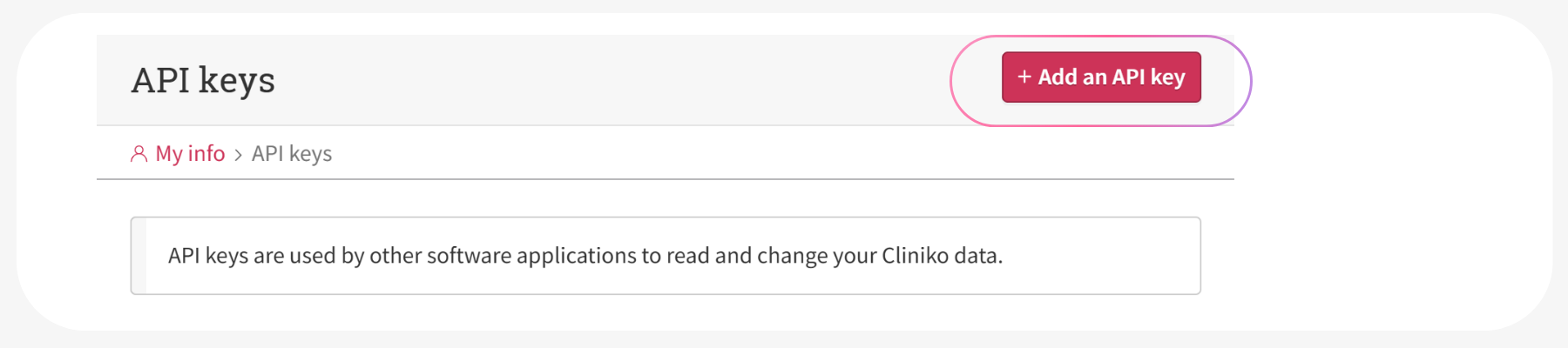
Select ‘Add an API Key’.
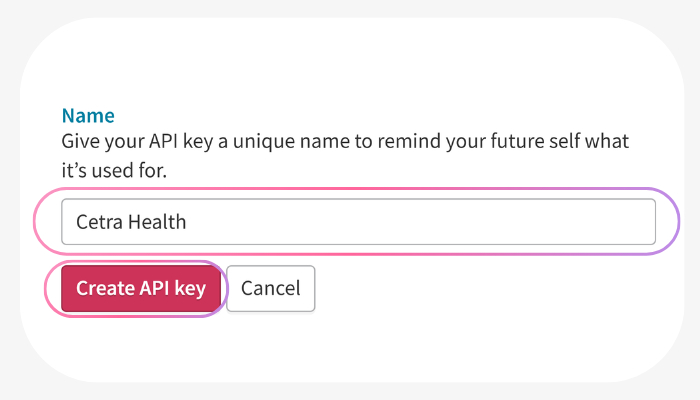
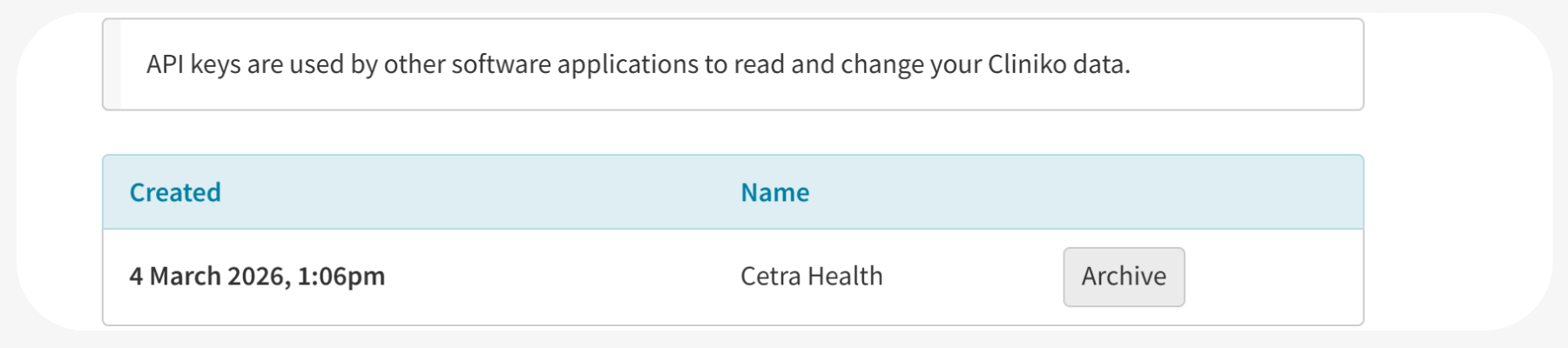
You will be asked to give the key a name. We recommend naming it “Cetra Health” so it’s easy to identify later.
Click ‘Create API Key’.
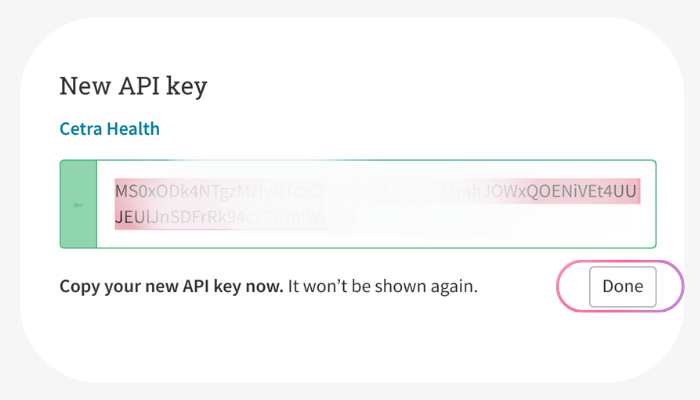
Cliniko will then generate your new API key.
Important note: The API key will only be shown once, immediately after it is created, so please ensure you copy it.
Step 3: Connect Cliniko in Cetra Health
Now that you have copied your Cliniko API key, the next step is to connect your Cliniko account inside Cetra Health.
Log in to your Cetra Health account.
Open the ‘Settings’ section.
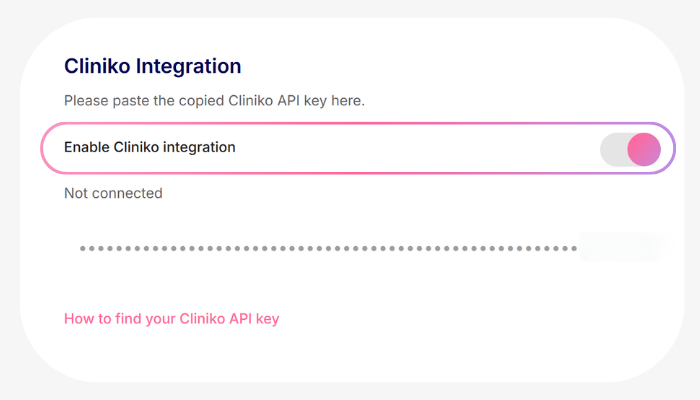
Scroll down until you see the ‘Integrations’ section.
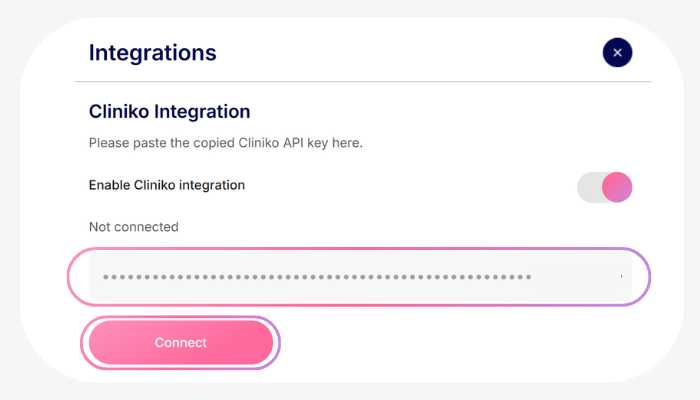
Click ‘Enable Cliniko Integration’.
Paste the API key you copied from Cliniko into the field provided.
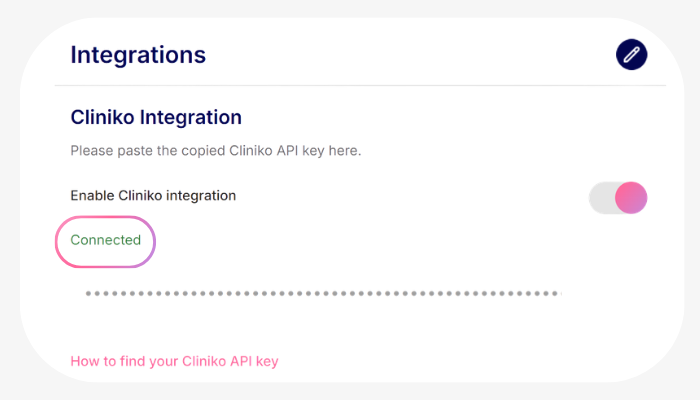
Click Connect.
Once connected, Cetra Health will be able to securely communicate with your Cliniko account so that handouts sent to patients can automatically be logged in their Cliniko patient record.
Step 4: Finalise the connection between Cetra and your Cliniko account
Now that the API key is linked, you can go ahead and finishing connecting the app. To do this, simply head back to Cliniko and:
Click ‘Settings’ in the left hand menu
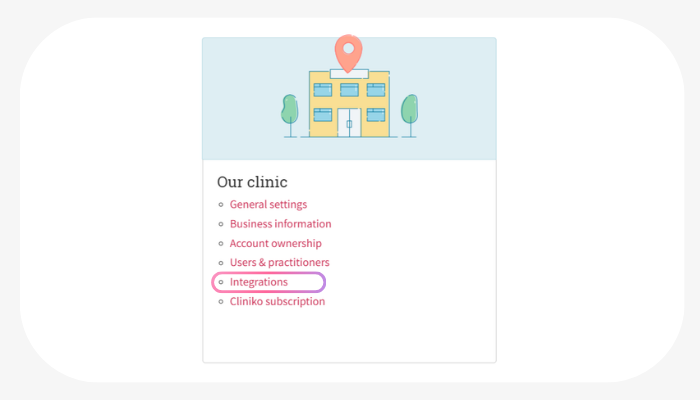
Select ‘Integrations’ from the ‘Our clinic’ section
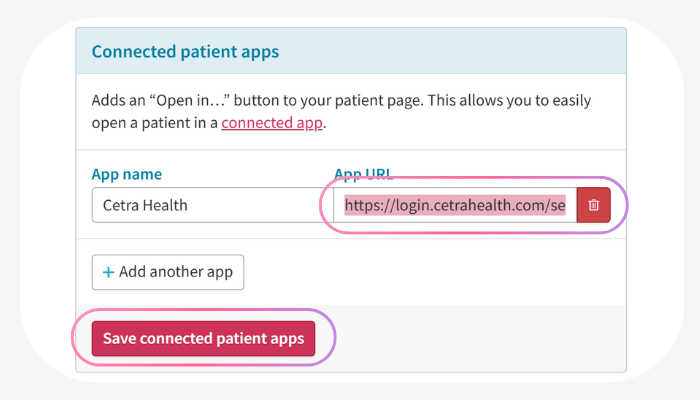
Scroll right down until you see ‘Connected patient apps’
Paste https://login.cetrahealth.com/search into the App URL box
Click ‘Save connected patient apps’
You’re ready to go!
Step 5: Open Cetra Health from a patient record in Cliniko
Once the integration is connected, you can launch Cetra Health directly from a patient’s record in Cliniko.
Log in to Cliniko and go to ‘Patients’.
Open the patient record for the person you want to send a handout to.
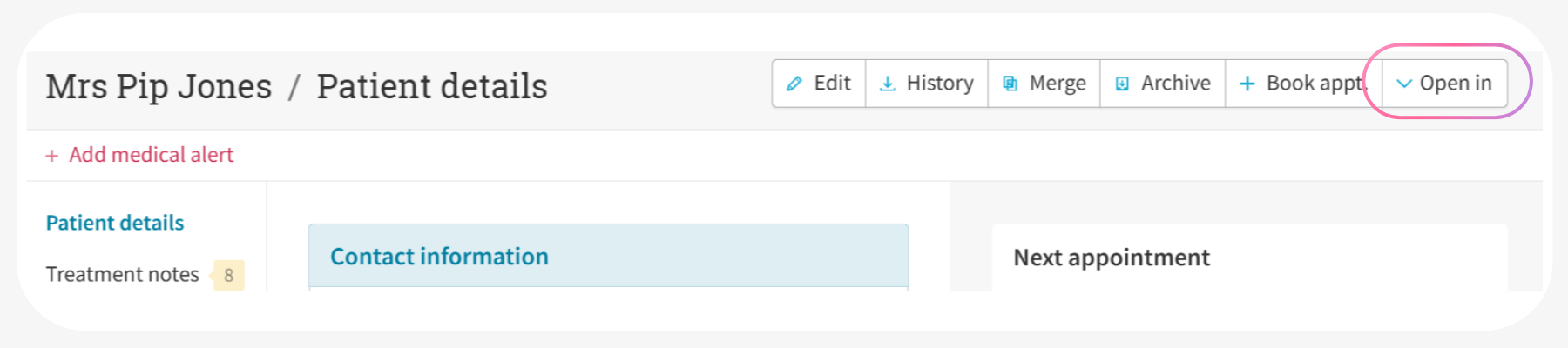
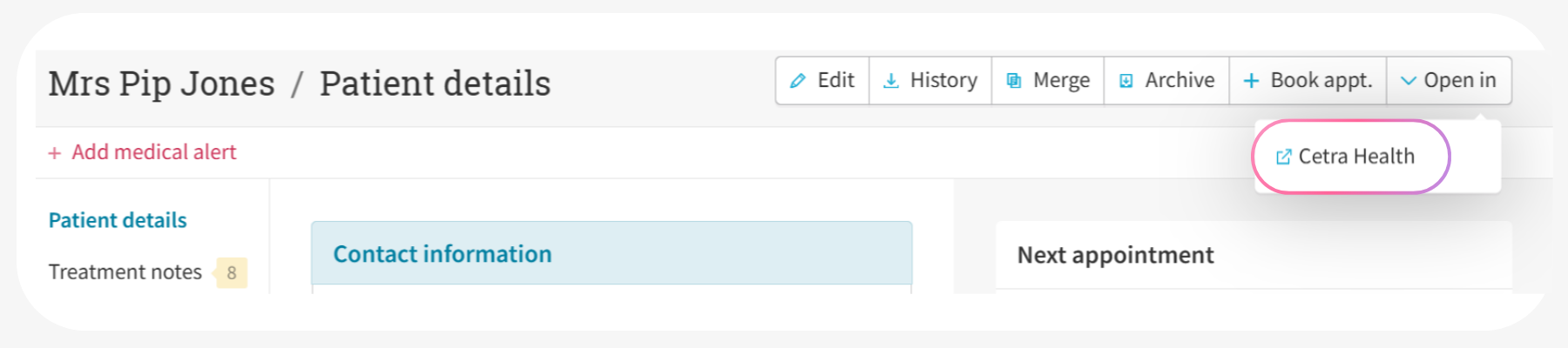
In the top right-hand corner, click the ‘Open in’ button.
From the dropdown menu, select ‘Cetra Health’.
This will open your Cetra Health account directly to the Handout Library, allowing you to quickly select and send a handout to the patient. The integration ensures the handout activity can be logged automatically in the patient’s Cliniko record.
Step 6: Send a handout and automatically log it in Cliniko
After selecting ‘Open in’ and ‘Cetra Health’, the ‘Handout Library’ will load.
Browse our library and select the handout you would like to send.
Choose how you would like to share the handout with your patient. Currently, only email sends are logged in Cliniko, but logging for WhatsApp, SMS, and print is coming soon.
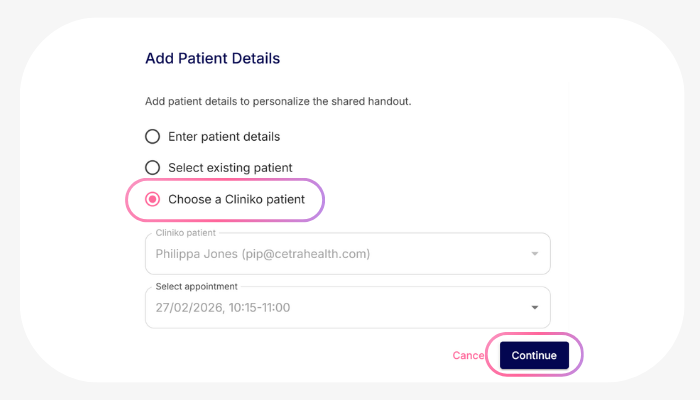
When sending the handout, you will be prompted to ‘Choose a Cliniko Patient’.
Cetra Health will automatically display the patient you originally selected in Cliniko, along with their appointment date and time. Next, select the relevant appointment from the list and click ‘Continue’.
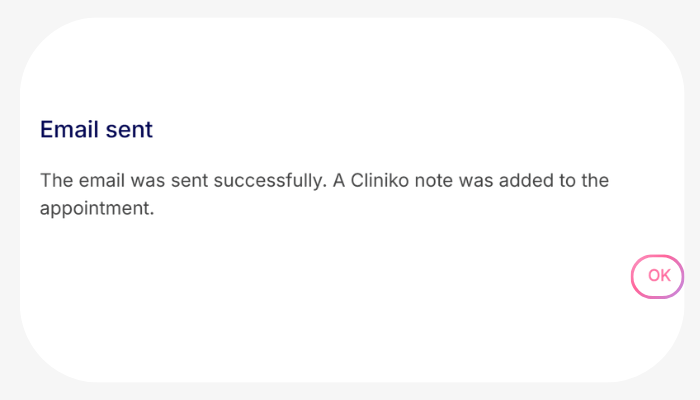
Once you click ‘Continue’, the handout will be sent to the patient and the action will automatically be logged in the patient’s Cliniko record, helping keep your documentation accurate without any additional manual entry.
Step 7: View the sent handout in Cliniko
After the handout has been sent, you can confirm that it has been automatically recorded in the patient’s Cliniko record. To do this you need to:
Go back to your Cliniko account.
Navigate to ‘Patient’s and open the patient record.
Select ‘Treatment Notes’.
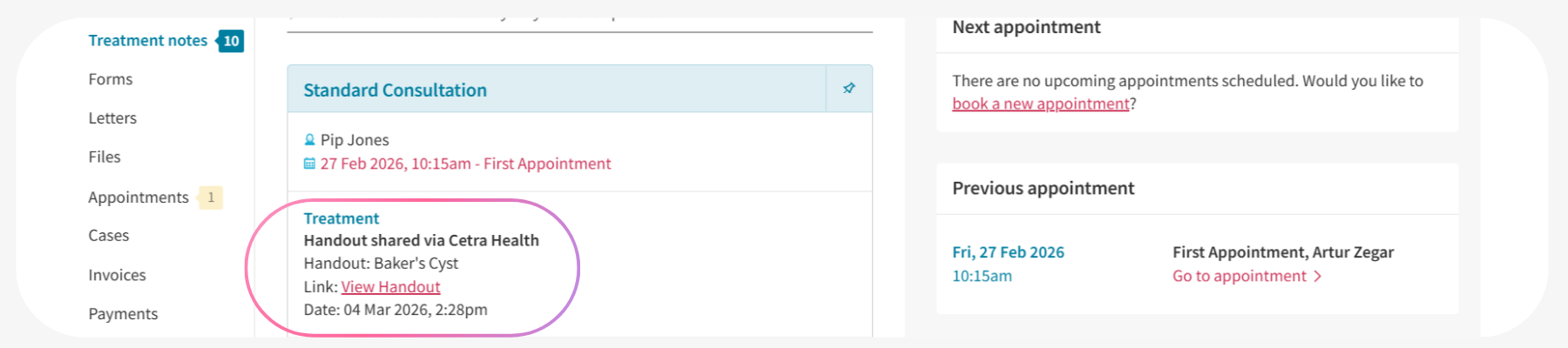
Under treatment notes, you will see a record of the handout that was sent to the patient from Cetra Health. This entry provides a clear log of the patient education material that was shared, helping maintain accurate documentation and a complete patient history.